Action
|
- Check the QC chart, check the parameter that exceeded the QC limit.
For Red Cell Parameters and PLT-I, the following procedures can be run.
NOTE: Perform each step, then run XN-CHECK and DRIFT Control to assess the effectiveness of the troubleshooting steps.
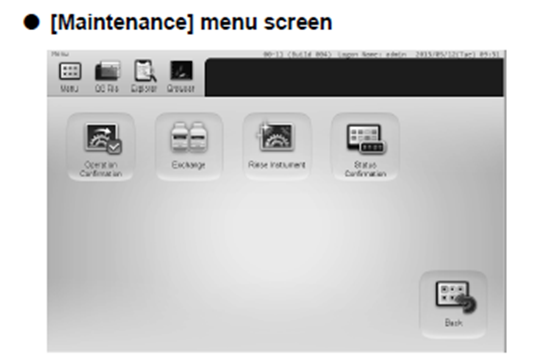
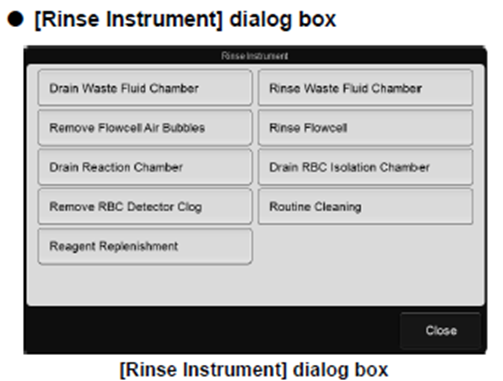
Troubleshooting procedure 1: Maintenance Menu
Perform the following maintenance procedures multiple times.
- [Remove RBC Detector Clog]
- [Drain RBC Isolation chamber]
- [Routine Cleaning]
Troubleshooting procedure 2: RBC Aperture Clean
Perform RBC Aperture clean.
Materials required: Nylon Aperture Brush, CELL CLEAN AUTO.
NOTE: Ensure analyser has been turned off.
- Open right cover.
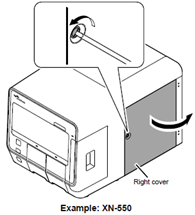
- Unscrew RBC Aperture cover.
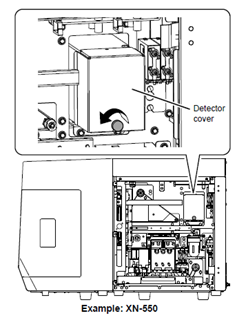
- Turn orange RBC aperture anti-clockwise to unscrew from base.
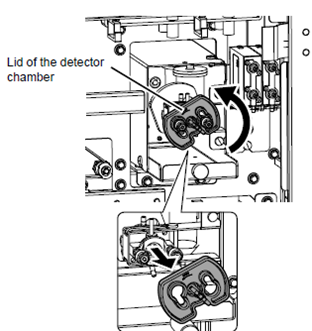
- Dip nylon brush in CELL CLEAN AUTO.
- Using Nylon brush, wipe inside of RBC aperture base, ensuring all insides of base, including aperture entry at the back, have been thoroughly wiped with cell clean.
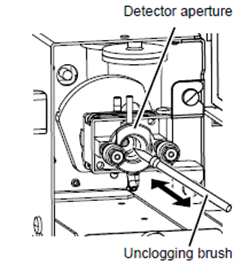
- Using Nylon brush, wipe RBC Aperture cover, and metal aperture.
- Carefully insert RBC aperture cover into base and turn clockwise to lock into place. Note: Do not force aperture into place. When seated correctly, RBC Aperture will move easily and click into place.
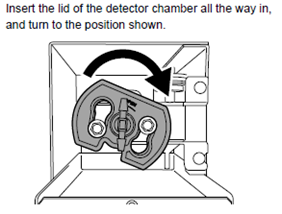
- Put RBC Aperture cover back and screw into place.
- Turn analyser on.
- Run XN-CHECK and DRIFT CONTROL analysis.
Troubleshooting procedure #3: RBC/HGB Chamber clean.
Materials required: CELLCLEAN AUTO, Plastic 1mL pipette
- Perform [Drain Reaction Chamber] in maintenance menu.
- Open right cover.
- Dispense 1mL of CELLCLEAN AUTO into RBC/HGB Chamber through hole in metal chamber cover. (Denoted by Red circle)
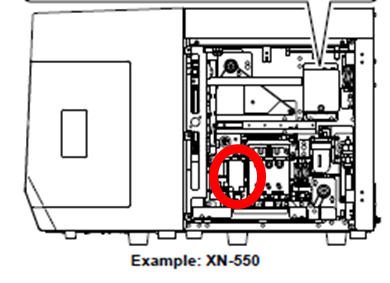
- Close right cover.
- Perform [Drain Reaction Chamber].
- Perform [Auto rinse].
For White Cell Parameters and PLT-O, the following procedures can be run.
- Perform [Rinse Flow Cell] from maintenance menu.
- Perform [Remove Flow Cell Air Bubbles] from maintenance menu.
- Perform [Cleaning] from maintenance menu.
|